
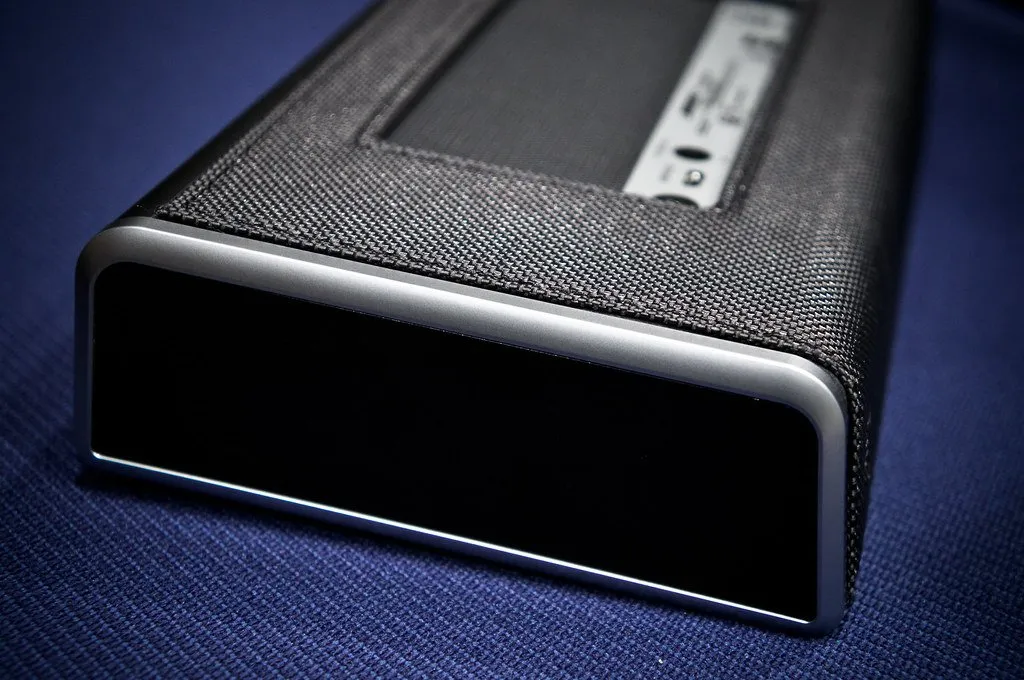
The Bose Soundlink Bluetooth speakers are a popular choice for users looking to experience quality audio from their mobile devices. Pairing these speakers with an iPhone or Android device is a straightforward process, but there can be nuances based on the device in question. To begin, ensure your Bose Soundlink speaker is plugged into a wall charger and powered on; it should automatically enter connecting mode upon first use. If your speaker has been factory-reset or used before, press and hold the Bluetooth icon until the Bluetooth light flashes blue, indicating it is ready to pair.
Connecting to an iPhone
To pair your Bose Soundlink speaker with an iPhone, navigate to the Bluetooth settings on your device. Once there, select the Bose Soundlink option listed under 'My Devices'. The Bluetooth light should blink white and then show a solid white light once successfully connected.

Connecting to an Android Device
For Android users, the process involves going to 'Connected devices' followed by 'Connection preferences' and selecting 'Pair New Device'. From here, choose the Bose Soundlink from the available list. Similar to an iPhone, the Bluetooth light will stabilize to a solid white once the connection is complete.
Troubleshooting Pairing Issues
Occasionally, users might experience difficulty pairing their devices, such as a situation where a Soundlink Flex speaker is not connecting to a Pixel 7 running Android 14. If the connection process freezes upon selecting "Pair," first try restarting your device, removing the speaker from the device list, or clearing Bluetooth settings on your speaker. It's important to ensure there are no compatibility issues that could arise due to software updates or specific app configurations.
| Platform | Pairing Process | Indication |
|---|---|---|
| iPhone | Navigate to Bluetooth settings -> Select Bose Soundlink | Bluetooth light blinks white then solid white |
| Android | Go to 'Connected devices' -> 'Connection preferences' -> Select Bose Soundlink | Bluetooth light blinks white then solid white |
| Troubleshooting | - Restart device - Remove and re-add speaker in device list - Clear Bluetooth settings on speaker | |
Enhanced Features and User Experience
Once connected, the Bose app offers additional functionalities such as stereo mode, allowing users to pair multiple speakers for a richer audio experience. For any unresolved issues during pairing, ensuring the latest firmware updates for both the speaker and the mobile device can often help. Moreover, understanding these settings enables users to manage how they interact with these wireless devices effectively, making the audio journey smoother and more enjoyable.
Besides technical connections, modern devices and applications often require transparency regarding data usage, notably through cookies and online technologies for targeted ads or analytics. Users should be aware that by using these devices and applications, they're consenting to such technologies unless settings are adjusted through provided cookie management options. This reflects a growing need to understand and control digital footprints, emphasizing the significance of privacy in today's tech-driven world.